



Translating Tutorial January 24, 2026
Content
- What should I know before starting a translation?
- Submitting a translation
- Translator entry on our site
- Development build or official release?
- License of your translation
- How does Zenphoto's translation work?
- A special note on use of quotation marks
- Language files and naming conventions
- Starting a new translation
- Updating or modifying an existing translation
- Plugin and theme translations
- Joining separate translation files
- Updating the Zenphoto release using GitHub

Note: On some servers translations do not work because of a bug in Apache's mod_perl. It concerns Apache version 2.4.46 and maybe earlier versions. Since Zenphoto does not require mod_perl you may disable it to make translations work again.
If you use MAMP (MacOS) for local development go to /Applications/MAMP/conf/apache/httpd.conf and comment the line: LoadModule perl_module modules/mod_perl.so by prepending the line with a hash (#). If you don't have control over the server, contact your host.
What should I know before starting a translation?
All existing complete or uncomplete translations are included in the Zenphoto release package. The language selector on the backend options indicates the status of a current translation.
It would be good if you were quite confident in written English and quite comfortable with Zenphoto itself and with web developement in general, although no coding is required to make a translation.
Keep in mind that if you volunteer to make translations there will be the need of updating the languages files at least for every official release since Zenphoto is a work in progress. You may make your translation based on the current release of zenphoto.
Submitting a translation
If you made a translation file, you can of course host it as you like and offer as a download. In that case just let us know about it via the forum.
You also can submit it for inclusion into the Zenphoto package. You will need a free GitHub account and have to create a Git controlled Zenphoto installation of the GitHub development version, preferably on a local server using WAMP, LAMP or MAMP.
If you update the languages there you can directly update them via GitHub using a pull request. See instructions here: https://help.github.com/articles/using-pull-requests
Translator entry on our site
If you prove to be a reliable and frequently committed translation contributor we also may ask you if you would like to get a translator entry on our Zenphoto team page. Generally we add anyone who is contributing significantly to the contributors page with the public info you provided via your contact anyway.
We really do appreciate the time and work – two of our core team members maintain the Dutch and German translation and know about this – that needs to be put into a frequently updated translation and would like to honor frequent contribution this way.
Development build or official release?
It is recommended to make your translation against the development build on GitHub. This way it will be ready for and matched up to the next release of Zenphoto.The work will be outdated initially since there are changes all the time otherwise.
Currently there are over 4600 strings that need to be translated so it does not really make sense to start with an older Zenphoto version. Some of these strings are only single words, some are doubled for specific reasons. Since we change strings here and there all the time we recommend doing updates frequently at least once a week, so it will be much easier to match a given release date of the next version. You simply will have less work that way than doing all at once. So better think twice before your volunteer... :-) More on that in detail later.
License of your translation
Just to note: Since a translation falls under copyright, your submitted translation should be provided under a open license compatible to Zenphoto's GPL v2 or later license. If no special license note is attached, we will assume GPL.
How does Zenphoto's translation work?
Zenphoto uses the gettext technology to provide translation and localization capability. Currently this requires native gettext support, meaning gettext needs to be installed as a binary PHP extension on your server.
Zenphoto uses the message-level for translation. We use the standard gettext functions gettext() and ngettext() to translate strings. If you are working with Zenphoto you might have spotted strings that look like this in the code:
Singular:
<?php echo gettext("some text"); ?>
Plural (actually rarely used):
<?php echo ngettext("1 apple","2 apples"); ?>
If a translation is found, "some text" will be replaced by the translation string. If no translation is found, then "some text" is used.
Additionally Zenphoto uses translatable format strings rather than gettext fragments only (post Zenphoto 1.2). You will also see strings that look like:
Singular:
<?php printf(gettext("text %s"),$var); ?>
Plural:
<?php printf(ngettext("%s apple","%s apples",$var),$var); ?>
The things which begin with % are parameters that get filled in at runtime. We are using sprintf/printf to format the output. If you are not familiar with these functions you can review the format variables here: https://www.php.net/manual/en/function.sprintf.php.
The quick lesson is that the above example has two numbers that will be filled in at runtime. %1$u is the first in the list and %2$u is the second. So the output from this would look like:
Album 5 of 10
If you wish to reverse the order of the elements you just change their place in the string while translating:
'Of %2$u albums this is number %1$u'
would yield
Of 10 albums this is number 5
In short: These variables are required to be included in your translation as well as any HTML code that may be within a string.
Which language translation(s) you want to use can be set in the admin options of Zenphoto. There is a separate option for setting the date-format, too. The translation is then provided for the admin interface, setup.php and the standard themes and plugins included in the distribution. Month and day names do not need to be translated manually, these will be done automatically by your server, assuming that your server operates on your (chosen) country's locale.
A special note on use of quotation marks
The English language source uses typographical quotation marks for textual presentations. We recommend that translations do so as well. Besides being gramatically corrrect this also avoids problems that can be caused by translated strings having programatic quotations that termiminate a quoted string by accident in the webpage HTML. We have tried to anticipate these situations and escape the strings, but it is simply human nature that there will be new cases that are created where these failures occur. We simply do not think in terms of the translated string when writing code, even if we know the language.
Some German examples to help with understanding:
Wrong double quotes: "This is a wrong quoted line."
Correct double quotes: „This is correctly quote“
Wrong single quotes: 'This is a wrong quoted line.'
Correct single quotes: ‚This is correctly quote’
Wrong apostrophe: ZP's language issues
Correct apostrophe: ZP’s language issues
If you cannot see the chars correctly for some reasons, take a look at this page for more examples in different languages: https://en.wikipedia.org/wiki/Quotation_mark
The rule of thumb is if the translation requires ADDING one of these quotation characters you MUST use the proper language character rather than the simple programming one to avoid Zenphoto bugs. If the programming character is already in the English string it is safe to use it in the translated string even if incorrect for the language. Note that it will be easier for you to find these extra strings if you first update the translation to the set with the English changes. Then any "inch" or "foot" quotes used in text will have been removed.
Language files and naming conventions
Zenphoto gets the translation terms itself from a .mo-file (machine object file). This file is binary and contains the original text and the translation. But the actual file to translate is a .po-file (portable object file).
File and folder structure
Both files are stored within zp-core/locale with the following standard folder structure:
de_DE/
de_DE/LC_MESSAGES
de_DE/LC_MESSAGES/zenphoto.po
de_DE/LC_MESSAGES/zenphoto.mo
The folder structure and the filenames are mandatory. You would have to provide an archive of exactly this structure for your language.
Since the .mo-file is binary, you can't work directly with it, so you have to work with the .po-file instead. This is a normal text file, that looks like this:
msgid ""
msgstr ""
"Project-Id-Version: Zenphoto 1.8\n"
"Report-Msgid-Bugs-To: \n"
"POT-Creation-Date: 2025-05-19 10:27+0200\n"
"PO-Revision-Date: 2026-01-24 10:33+0100\n"
"Last-Translator: john smith \n"
"Language-Team: john smith \n"
"Language: de_DE\n"
"MIME-Version: 1.0\n"
"Content-Type: text/plain; charset=UTF-8\n"
"Content-Transfer-Encoding: 8bit\n"
"Plural-Forms: nplurals=2; plural=n !=1;\n"
"X-Poedit-SourceCharset: UTF-8\n"
"X-Poedit-Basepath: /Applications/MAMP/htdocs/zenphoto"
"X-Poedit-KeywordsList: \n"
"X-Generator: Poedit 3.8\n"
"X-Poedit-SearchPath-0: zp-core\n"
"X-Poedit-SearchPath-1: themes\n"
"X-Poedit-SearchPathExcluded-0: zp-core/js\n"

#: themes/basic/404.php:27
msgid "Object not found"
msgstr "Objekt nicht gefunden"
[...]
Note: the "Project-id-Version" text must be manually inserted in the translation properties to indicate the version of Zenphoto for which the translation corresponds. Note the version should be the one of the next release so it is current then. So if the current release is 1.6.4 don't use that. Instead look at the zp-core/version.php of the build on GitHub. That version is likely something like 1.6.5b. Use 1.6.5 then for your translation.
If you use Poedit to translate you can set this on the translation properties. See "Starting a new translation".
Language flag image
Zenphoto 1.3.2 has introduced a "visual" language selection feature. For this an 24 x 16 px image named flag.png must be placed within your locale folder:
de_DE/flag.png
Should the image be missing an "error flag" will be substituted.
Translation tools
You can edit the .po-file with any text editor. But you have to transform it into a .mo-file to be used for translation. There are several tools that can do that for you:
The official GNU gettext package includes command-line tools, but you might prefer a real editor with a GUI. For Linux based systems there are for example LaunchPad and others, but considered the standard tool for this is Poedit which is available for Windows, Mac and Linux.
We would recommend Poedit (well, we don't really know the others..:-)) and the description in the next section uses it. But the setup for another editor will probably be not that different.
Starting a new translation
There are basically two ways to start a translation: You could use one of the translation files included in the Zenphoto distribution and change it to your language. Or you can parse the Zenphoto package yourself using Poedit.
The second is the way we would recommend, because you then can be sure that you don't miss any string since we update and change all the time. And it saves workload if you update the file more often than just once when a new version comes out.
- Download and install Poedit.
- Download the latest support build of Zenphoto and extract the files into the same folder where Poedit is or a folder level below. Poedit needs an absolute path to work correctly. This does not need to be within a localhost server setup like MAMP, WAMP or XAMPP but of course this would be very useful to test your translation.
- On Mac OS X the folder to parse is best located on the same level or below Poedit's location in the Applications folder, since the paths too are relative from Poedit's location:
Zenphoto folder: /Applications/MAMP/htdocs/zenphoto
Poedit: /Applications/Poedit
Also working is simply the folder (as used on 12.):
Zenphoto install: /Applications/zenphoto
Poedit: /Applications/Poedit
On Windows that folder setup seems not to be that important.
- Do not install any additional plugins or themes besides the already included ones as some may included additional gettext calls (and separate translation files) that are not necessary for Zenphoto's own translation file and bloat the file unnecessarily.
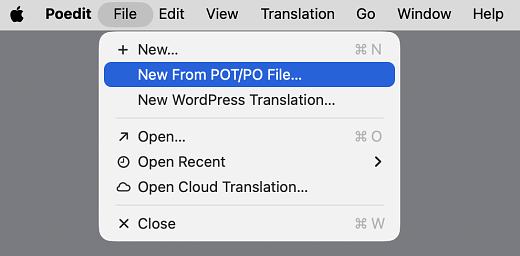
Then open zenphoto/zp-core/locale in your zenphoto installation, duplicate the de_DE folder or any other folder and rename it to match your locale. - Now open Poedit and select File > New From POT/PO File...:
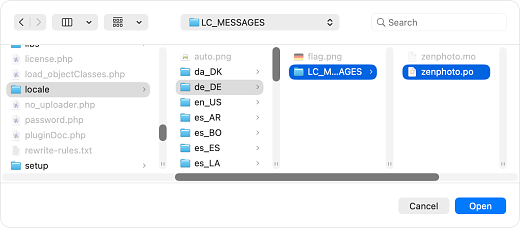
- You will be asked to select a .pot file. Choose the one in the folder you just duplicated.
- You will then be asked to choose the language for yor translation.

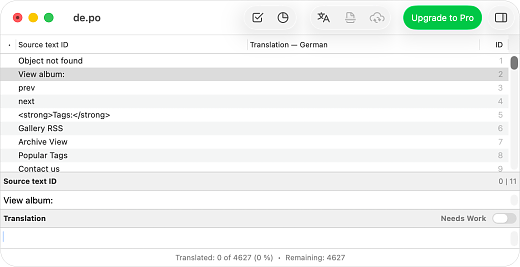
- You'll see the standard Poedit window with source texts on the left and the translations on the right. In this case the translations part is empty since this is a new translation.
- Before starting to translate the source strings you must change the translation properties.
To do that, go to Translation > Properties in the menu bar. - In the appearing properties window enter your data. Most are fields pretty obvious, only language, country and charset are mandatory. Set the charset to UTF-8. Poedit automatically sets the plural rules for the specified language. If needed you can also set your own custom plural expression. More info about plural expressions on the Poedit website and the gnu.org gettext plural page.
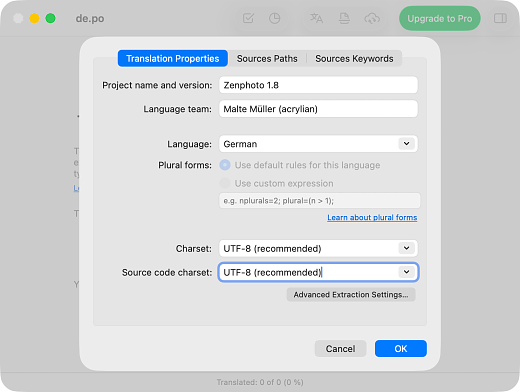
Please set the Zenphoto <version> correctly to indicate the version of Zenphoto for which the translation corresponds- This will be displayed on the admin language selector. - Next you need to set the path of the Zenphoto folder to parse.
Go to File > Properties > Sources Paths. You will be asked to save the file first.
Save the file in the correct language folder in zenphoto/zp-core/locale/<locale>/LC_MESSAGES/ - You can now set the Sources Paths.
Remember that it is important to divide a path like this C:\Programs\zenphoto into the base path C:\Programs\ and the relative path zenphoto (Mac OS X example shown below).
Poedit allows you to simply drag and drop the folder(s) into the appropriate path fields.
You can ignore the keywords tab, because Zenphoto uses the default gettext keyword.
For plugin and theme translations Source Paths and Source Keywords need to be changed. See Plugin and theme translations.
- On the left the original English strings. Click on a line and you can enter the translation for it below.
Singular translations will look like this:
- Plural translations will look like this:
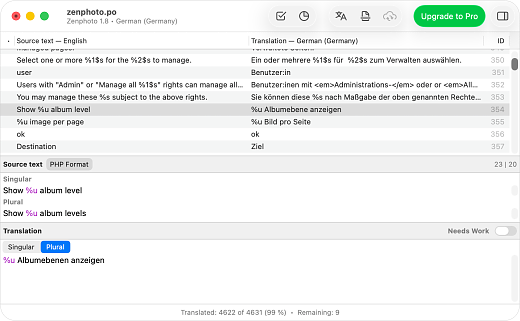
- Sometimes you will encounter HTML markup within the strings to translate. We have included them because some languages have a very different syntax that might require changing the order within a string. These markup needs to be included within your translation, too. Also you might think that some strings are completly useless like a lonely ")" or the colon (:) in "View image:" for example. It's not forgotton, but on purpose. There are languages that use not only differenty syntax but completly different characters too. And some even write from right to left, so these characters need to be changeable, too. Sometimes you might see a string that you don't need or want to translate. Something like "SpamAssassin" is most likely a fixed term for example. You can leave that field empty, but it's recommend to fill in the same term, so simply use the context menu to copy the original string to the translation field.
- Some sentences are hard to translate without knowing the context. Go to View > Show Code Occurences.
Poedit's context menu (right mouse click) will also show you were in Zenphoto the referring string is used.
- When you are done with the translation just hit save and Poedit automatically generates a .mo-file that is used for the translation called zenphoto.mo. Now you should check your translation with Zenphoto. It's recommended to use your zenphoto folder as a base for future translation updates, so that you don't have to change the parsing path for Poedit all the time.
Note: if you are developing locally (and you should) don't forget to restart the webserver to see the result.


Updating or modifying an existing translation
- If you choose to update or modify a translation, you can just open the .po-file of that locale with Poedit. IMPORTANT: If that file was not generated by you, you would have to check and change the path to parse to match your Zenphoto folder in Poedit's properties!

- If you have done that, go to Translation > Update from Source Code.
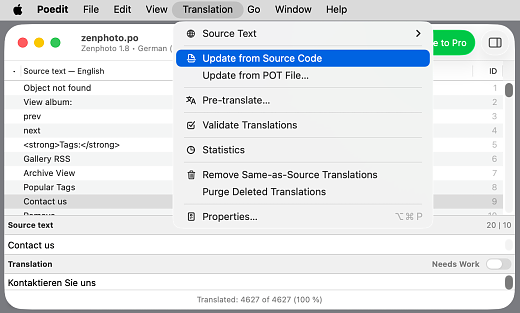
- Poedit will now compare the translation file with the Zenphoto folder to check if and what strings have changed.

Don't panic when you see there are "issues with the source strings". Poedit can be very strict but it will not stop you from proceding. Just ignore the warning.
Click on "View Details" to see possible "Issues", "New Strings" and "Removed Strings".
Present "Removed Strings" will be deleted from the file.
- If Poedit finds untranslated strings, they will be listed in the window below you already know.
- If you have worked in that language before, Poedit might have collected some terms in its internal dictionary and will try to autotranslate some strings. These strings are then marked in orange as "fuzzy". Most of the time Poedit is fairly wrong with its guesses though, so don't rely on that.
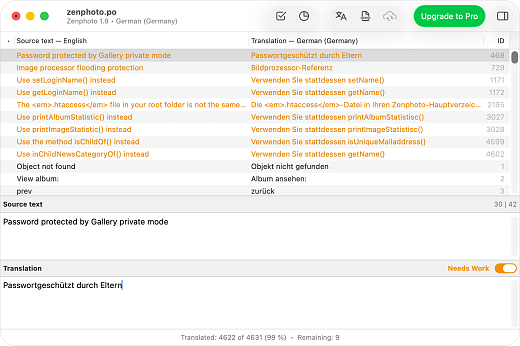
- Poedit lists the percentage of translation, the total number of strings plus the fuzzy strings (autotransation attempts), the bad ones and the untranslated in the bottom statusbar.

- When you are finished with your update, hit "Save" again and the .mo-file gets automatically updated.
Note: if you are developing locally (and you should) don't forget to restart the webserver to see the result.


Plugin and theme translations
If you provide a theme or plugin as a third party, its translation is obviously not included with Zenphoto's general translation file. But with since Zenphoto 1.3.2 it is possible to have independent translations files for your theme or plugin.
Plugin translations
There are two sources of strings that need to be translated for a theme/site:
- The first is items in your database such as text to be set in options manually. For these to be translated in multiple languages you will need to enable the Multi-lingual feature and define the option field multilingual. See the multilingual sites and plugin tutorials about this.
- The second and most prominent is the literal strings in the PHP code that this tutorial refers to. Plugins which are included with the Zenphoto distribution are also handled by the normal processing as described above.
To set up your plugin for separate translations, you need to enclose every string in your plugin with the special function gettext_pl() instead of the standard gettext():
<?php echo gettext_pl("some text","<yourplugin>"); ?>
This function tells Zenphoto that this string uses its own plugin translation. You should not mix standard gettext() with this in your plugin as Poedit would read these as well and add them to the translation file unnecessarily.
If your plugin consists of just one single file .php, you have to create an additional folder of the same name next to the plugin file. Use exact this folder setup:
/plugins/<yourplugin>.php
/plugins/<yourplugin>/locale/<locale>/LC_MESSAGES/
/plugins/<yourplugin>/locale/<locale>/LC_MESSAGES/<yourplugin>.po
/plugins/<yourplugin>/locale/<locale>/LC_MESSAGES/<yourplugin>.mo
Now setup Poedit as described above but only to parse your plugin's folder. Additionally you have to add the keyword "gettext_pl" to Translation > Properties > Sources Keywords so that the special plugin translation strings are recognized.
Your Poedit Properties windows should look something like this:

Theme translations
There are two sources of strings that need to be translated for a theme/site:
- The first is items in your database such as image and album descriptions. For these to have multiple languages you will need to have to enable the multi-lingual feature. See the multilingual sites tutorial about this.
- The second and most prominent is the literal strings in the PHP code that this tutorial refers to. Themes which are included with the Zenphoto distribution are also handled by the normal processing as described above.
To set up your theme for separate translation, you just need to enclose every string in your theme that should be translatable with the special function gettext_th) instead of the standard gettext():
<?php echo gettext_th("some text","<yourtheme>"); ?>
This function tells Zenphoto that this string uses its own theme translation. You should not mix standard gettext() with this in your theme as Poedit would read these as well and add them to the translation file unnecessarily.
You also need need to have a locale folder set up within your theme's folder this way:
/themes/<yourtheme>/
/themes/<yourtheme>/locale/
/themes/<yourtheme>/locale/<locale>/LC_MESSAGES/
/themes/<yourtheme>/locale/<locale>/LC_MESSAGES/<yourtheme>.po
/themes/<yourtheme>/locale/<locale>/LC_MESSAGES/<yourtheme>.mo
Now setup Poedit as described above but only to parse your theme's folder. Additionally you have to add the keyword "gettext_th" to Translation > Properties > Sources Keywords so that the special theme translation strings are recognized.
Your Poedit Properties windows should look something like this:

Joining separate translation files
Poedit provides the translation memory feature that is a kind of dictionary/database to make this task easier. Some resources:
- https://poedit.net/docs/reference/translation-memory/
- https://www.gnu.org/software/gettext/manual/gettext.html
Updating the Zenphoto release using GitHub
You need an account on GitHub. GitHub offers several convenient clients for various systems and there are others out there. This example will use the Mac client but things should be similar in others. You find a list of other Git clients here:
https://git-scm.com/downloads/guis
- Once you setup your client with your GitHub account and you have been granted commit rights (= been added as a member to the translation team) you will see the Zenphoto repository appearing in the client.

- After you cloned that repository to your local server, you've got a version controlled version listed. You can easily sync with the lastest changes so you always have all new strings to translate

- The GitHub client should note about any change you did to your translation files and offer them to be commited. A speciality of GitHub is that you have to commit your changes first before you can get new files from the repository that changed meanwhile. Be sure to use the "master" branch.
Language translation is typically done by individual translators. When no co-operative translation effort is in place, the translator need not maintain any branches, published or otherwise. Instead changes are made locally and committed directly to the appropriate published branch.
- The GitHub clients let you only clone each repository once. If you want to keep your translation clone separate from another local install, so you don't accidentally parse unwanted 3rd party gettext strings, you can just drop the folder with the just cloned repository on the client to get a 2nd one. A bit unfortunate is that they have the same name. You see only which is what if you click on it and look at the top left breadcrum in the client.


 This text by www.zenphoto.org is licensed under a Creative Commons Attribution-ShareAlike 3.0 Unported License.
Code examples are released under the GPL v2 or later license
For questions and comments please use the forum or discuss on the social networks.